After some thoughtful consideration, I am going to end any further development of the Unity Connection-CUCME Labs. When I initially launched my study CCIE Voice study efforts in July of 2008, my intention was to drill deep on each component of the lab. However, I've reached the conclusion that while this approach was worthwhile, it was also a tedious and time-consuming process. At the rate I am moving and studying, around normal work responsibilities and daily life, I would be sitting for the lab sometime in 2011! LOL
Instead, I am going to plow ahead with developing more “comprehensive” lab incorporating all technologies. The upside is I hope to accelerate the study process and aim to sit for the lab sometime in late spring / early summer 2010. The possible downside would be failing to delve deep enough to anticipate everything that could be thrown at me.
Look for a new series of postings shortly!
Wednesday, September 9, 2009

Monday, August 31, 2009
Unity Connection-CUCME Lab 7 – Baltimore CUE
This lab will revisit setting up CUE in Baltimore for eventual integration with Unity Connection via VPIM. It will be very similar to CUCME-CUE Lab 8.
Unity Connection Lab 7.1 – Baltimore CUE Tasks
1. Configure the Baltimore CUCME router to interface with CUE, using IP address 10.1.12.3/24.
2. Use extension 1999 as the voicemail pilot.
3, Use 8000 and 8001 for MWI.
4. Create voicemail users and mailboxes via the CUE CLI.
5. Mailboxes should be limited in size to accommodate up to 50 users on a AIM-CUE.
6. Make sure that messages can be forward via either dial by name or by extension.
7. Provision the system for GUI access.
Unity Connection Lab 7.2 – Baltimore CUE Verification
Since the tasks here are almost identical to CUCME-CUE Lab 8, please refer to that previous post for help on answers. Note, the Baltimore dial plan for Arliss Michaels and Cal Ripken is slightly different, refer to Unity Connection-CUCME Scenario Background.
Unity Connection Lab 7.3 – Baltimore CUE Wrap-up
The original intention for this lab was to stage Baltimore and then integrate with Unity Connection via VPIM. However, after some thought, I am not sure this is applicable for the CCIE Voice Lab. During the CCIE Voice Techtorial and Cisco Live 2009, the present suggested that the CCIE Voice lab would not have a DNS server. Based on some initial research for VPIM integration, DNS is a requirement. Therefore, one could infer that VPIM would not be tested in the Voice Lab.
That said, I will spend some time pretesting VPIM integration between Baltimore CUE and Unity Connection. If this testing consumes too much time and integration with DNS, I may abort and move on to some other items.
Unity Connection Lab 7.1 – Baltimore CUE Tasks
1. Configure the Baltimore CUCME router to interface with CUE, using IP address 10.1.12.3/24.
2. Use extension 1999 as the voicemail pilot.
3, Use 8000 and 8001 for MWI.
4. Create voicemail users and mailboxes via the CUE CLI.
5. Mailboxes should be limited in size to accommodate up to 50 users on a AIM-CUE.
6. Make sure that messages can be forward via either dial by name or by extension.
7. Provision the system for GUI access.
Unity Connection Lab 7.2 – Baltimore CUE Verification
Since the tasks here are almost identical to CUCME-CUE Lab 8, please refer to that previous post for help on answers. Note, the Baltimore dial plan for Arliss Michaels and Cal Ripken is slightly different, refer to Unity Connection-CUCME Scenario Background.
Unity Connection Lab 7.3 – Baltimore CUE Wrap-up
The original intention for this lab was to stage Baltimore and then integrate with Unity Connection via VPIM. However, after some thought, I am not sure this is applicable for the CCIE Voice Lab. During the CCIE Voice Techtorial and Cisco Live 2009, the present suggested that the CCIE Voice lab would not have a DNS server. Based on some initial research for VPIM integration, DNS is a requirement. Therefore, one could infer that VPIM would not be tested in the Voice Lab.
That said, I will spend some time pretesting VPIM integration between Baltimore CUE and Unity Connection. If this testing consumes too much time and integration with DNS, I may abort and move on to some other items.
Thursday, August 20, 2009
Unity Connection-CUCME Lab 6 – Unity Connection & Los Angeles CUCME Integration
Unity Connection-CUCME Lab 6 is basically a duplication of Unity Connection-CUCME Lab 4 – Unity Connection & CUCME New York Integration. However, due to the limited number of ports in the Unity Connection demo license, we need to make some modifications to what was done in Unity Connection-CUCME Lab 5 – Unity Connection & CUCME Baltimore Integration.
Lab 6.1 – Unity Connection & Los Angeles CUCME Integration Tasks
1. Remove all voicemail configuration parameters in the Baltimore CUCME router.
2. Remove all telephony integration settings for Baltimore in Unity Connection, including the users.
3. Configure the Los Angeles CUCME router to interface with Unity Connection via a SIP Trunk.
4. Use extension 2999 as the voicemail pilot.
5. Create voicemail users and mailboxes for LA users for testing purposes. However, make the users E.164 their primary voicemail box number and their 4-digit extension
6. Use PIN 135246 for each user and ensure that it never expires.
7. Users should be forced to enroll the first time they access Unity Connection.
8. Ensure that users receive their proper greeting when they dial from their Cisco IP Phone.
Lab 6.2 – Unity Connection & Los Angeles CUCME Integration Verification
1. The first two tasks involve removing the integration between Unity Connection and Baltimore. On Unity Connection, first remove the users (Arliss Michaels & Cal Ripken), then the phone system, port group, and ports.
On the Baltimore CUCME router, the commands to remove the configuration for Unity Connection is as follows:
baltimore(config)#no dial-peer voice 2999 voip
baltimore(config)#telephony-service
baltimore(config-telephony)#no voicemail 2999
baltimore(config-telephony)#ephone-dn 1
baltimore(config-ephone-dn)#no call-forward busy 2999
baltimore(config-ephone-dn)#no call-forward noan 2999 timeout 4
baltimore(config-ephone-dn)#ephone-dn 2
baltimore(config-ephone-dn)#no call-forward busy 2999
baltimore(config-ephone-dn)#no call-forward noan 2999 timeout 4
baltimore(config-ephone-dn)#no ephone-dn 5 dual-line
baltimore(config)#no ephone-dn 6
baltimore(config)#no ephone 3
2. Configuring the Los Angeles CUCME router is nearly identical to the configuration parameters added in Lab 4. To review, refer to Unity Connection-CUCME Lab 4.
3. Because the lab instructions states to configure the user extension using their E.164 address, we have to make some tweaks. First, a screen shot of Jerry Maquire’s Basic User information. Note that Jerry is associated with the LA-CUCME phone system

Next, we need to define Jerry Maquire’s four-digit extension as an alternate extension.
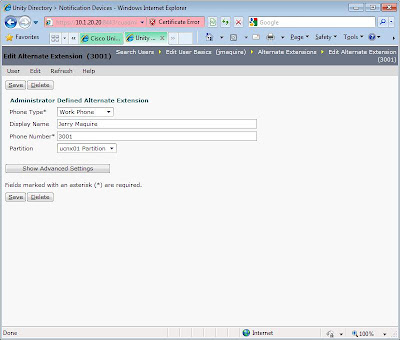

4. Simple enough, right? Jerry and Kobe should be able access Unity Connection. Unfortunately, this was not the case.
I first tested the phone system integrations after adding LA, and Unity Connection indicated everything was functional. However, when I pushed the voicemail key on the phone, I received a busy response. Dialing 2999 directly also returned the same result.
I then proceeded to walk through various troubleshooting procedures, such as placing calls across the “WAN” to other location, ping tests, and various debug voice commands; everything was telling me calls and IP routing was functioning correctly.
Stumped, I begin exploring additional debugs one by one. Debug ccsip revealed the problem, buried in lines of output. I added the LA CUCME router to Unity Connection using the voice vlan subnet IP address 10.1.32.1. As I combed through the debug output, a 172.16.1.5 address caught my attention. It appears that Unity Connection was sending response to the LAN WAN link IP, which is the last hop IP leaving LA to NY. Changing the Server address in Unity Connection for LA from 10.1.32.1 to 172.16.1.5 corrected the problem.
Lab 6.3 – Unity Connection & Los Angeles CUCME Integration Wrap-up
Lab 6.1 – Unity Connection & Los Angeles CUCME Integration Tasks
1. Remove all voicemail configuration parameters in the Baltimore CUCME router.
2. Remove all telephony integration settings for Baltimore in Unity Connection, including the users.
3. Configure the Los Angeles CUCME router to interface with Unity Connection via a SIP Trunk.
4. Use extension 2999 as the voicemail pilot.
5. Create voicemail users and mailboxes for LA users for testing purposes. However, make the users E.164 their primary voicemail box number and their 4-digit extension
6. Use PIN 135246 for each user and ensure that it never expires.
7. Users should be forced to enroll the first time they access Unity Connection.
8. Ensure that users receive their proper greeting when they dial from their Cisco IP Phone.
Lab 6.2 – Unity Connection & Los Angeles CUCME Integration Verification
1. The first two tasks involve removing the integration between Unity Connection and Baltimore. On Unity Connection, first remove the users (Arliss Michaels & Cal Ripken), then the phone system, port group, and ports.
On the Baltimore CUCME router, the commands to remove the configuration for Unity Connection is as follows:
baltimore(config)#no dial-peer voice 2999 voip
baltimore(config)#telephony-service
baltimore(config-telephony)#no voicemail 2999
baltimore(config-telephony)#ephone-dn 1
baltimore(config-ephone-dn)#no call-forward busy 2999
baltimore(config-ephone-dn)#no call-forward noan 2999 timeout 4
baltimore(config-ephone-dn)#ephone-dn 2
baltimore(config-ephone-dn)#no call-forward busy 2999
baltimore(config-ephone-dn)#no call-forward noan 2999 timeout 4
baltimore(config-ephone-dn)#no ephone-dn 5 dual-line
baltimore(config)#no ephone-dn 6
baltimore(config)#no ephone 3
2. Configuring the Los Angeles CUCME router is nearly identical to the configuration parameters added in Lab 4. To review, refer to Unity Connection-CUCME Lab 4.
3. Because the lab instructions states to configure the user extension using their E.164 address, we have to make some tweaks. First, a screen shot of Jerry Maquire’s Basic User information. Note that Jerry is associated with the LA-CUCME phone system

Next, we need to define Jerry Maquire’s four-digit extension as an alternate extension.

Finally, we need to uncheck the “Inherit User’s Extension” and add Jerry’s four-digit extension under his MWI settings. Repeat the above for Kobe Bryant.

4. Simple enough, right? Jerry and Kobe should be able access Unity Connection. Unfortunately, this was not the case.
I first tested the phone system integrations after adding LA, and Unity Connection indicated everything was functional. However, when I pushed the voicemail key on the phone, I received a busy response. Dialing 2999 directly also returned the same result.
I then proceeded to walk through various troubleshooting procedures, such as placing calls across the “WAN” to other location, ping tests, and various debug voice commands; everything was telling me calls and IP routing was functioning correctly.
Stumped, I begin exploring additional debugs one by one. Debug ccsip revealed the problem, buried in lines of output. I added the LA CUCME router to Unity Connection using the voice vlan subnet IP address 10.1.32.1. As I combed through the debug output, a 172.16.1.5 address caught my attention. It appears that Unity Connection was sending response to the LAN WAN link IP, which is the last hop IP leaving LA to NY. Changing the Server address in Unity Connection for LA from 10.1.32.1 to 172.16.1.5 corrected the problem.
Lab 6.3 – Unity Connection & Los Angeles CUCME Integration Wrap-up
Interestingly, my configuration in Lab 4 did not produce this problem because I added the NY CUCME router to Unity Connection using its 10.1.20.1 address, which is on the same subnet as Unity Connection. Another valuable lesson is using a different, easily recognizable IP Addressing scheme for the WAN (172.16.1.x), rather than borrowing a subnet from the same 10-space used for the VLANS. I wonder how easily I would have spotted Unity Connection seeking LA’s WAN interface I had chosen a 10 address space for the WAN.
Tuesday, August 11, 2009
Unity Connection-CUCME Lab 5 – Unity Connection & CUCME Baltimore Integration
Now that the New York CUCME has been integrated with Unity Connection, we will now provision basic voice mail connectivity for the CUCME users in Baltimore.
Lab 5.1 – Unity Connection & Baltimore CUCME Integration Tasks
1. Configure the Baltimore CUCME router to interface with Unity Connection via SCCP.
2. Use extension 2999 as the voicemail pilot.
3. Create voicemail users and mailboxes for Baltimore users for testing purposes.
4. Use PIN 135246 for each user and ensure that it never expires.
5. Users should be forced to enroll the first time they access Unity Connection.
6. Ensure that users receive their proper greeting when they dial from their Cisco IP Phone.
Lab 5.2 – Unity Connection & Baltimore CUCME Integration Verification
1. The first step for this lab is to configure the Baltimore CUCME router to integrate with Unity Connection. The first document to review is the Cisco Unified Communications Manager Express SCCP Integration Guide for Cisco Unity Connection Release 7.x, specifically the section “Programming a Cisco Unified Communications Manager Express Router to Integrate with Cisco Unity Connection (Without a Connection Cluster)”.
Note, this document does not call out the need for a VOIP dial-peer, which of course is necessary in order for Baltimore to connect with Unity Connection in New York. Also, pay attention to both how the actual ephone integration works, as well as MWI; both are different than CUE.
The appropriate sections of the configuration are below.
baltimore#sh run
!
!
dial-peer voice 2999 voip
description VOIP peer to Unity Connection
destination-pattern 2999
session target ipv4:10.1.20.20
codec g711ulaw
no vad
!
!
telephony-service
voicemail 2999
!
!
ephone-dn 1 dual-line
number 1001
label Arliss Michaels 1001
description 410-555-1001
name Arliss Michaels
call-forward busy 2999
call-forward noan 2999 timeout 4
!
!
ephone-dn 2 dual-line
number 1002
label Cal Ripken 1002
description 410-555-1002
name Cal Ripken
call-forward busy 2999
call-forward noan 2999 timeout 4
!
!
!
!
ephone-dn 5 dual-line
number 2999
description CUC1-VI1
name Unity Conneciton
huntstop channel
!
!
ephone-dn 6
number 8000 secondary 8001
mwi on-off
!
!
!
ephone 3
device-security-mode none
vm-device-id CUC1-VI1
button 1:5
!
2. The Unity Connection Integration is clearly documented in the “Creating a New Integration with Cisco Unified Communications Manager Express” section of the Cisco Unified Communications Manager Express SCCP Integration Guide for Cisco Unity Connection Release 7.x guide.
3. Add Arliss Michaels and Cal Ripken in much the same fashion as you did for Lab 4. Then, set up each user’s voicemail box and leave some test messages. Also, try forward messages to users in New York, and vice versa.
Lab 5.3 – Unity Connection & Baltimore CUCME Wrap-up
Since the Unity Connection Demo License only has two ports, we are somewhat constrained on integrating Los Angeles. I’ve played with some possible work-arounds, where users in Los Angeles were able to access Unity Connection. However, I was unable to get MWI to function properly. Therefore, the next couple of labs will involve removing the Baltimore CUCME Integration, adding Los Angeles, reconfiguring CUE in Baltimore, and then attempt to integrate CUE with Unity Connection.
Lab 5.1 – Unity Connection & Baltimore CUCME Integration Tasks
1. Configure the Baltimore CUCME router to interface with Unity Connection via SCCP.
2. Use extension 2999 as the voicemail pilot.
3. Create voicemail users and mailboxes for Baltimore users for testing purposes.
4. Use PIN 135246 for each user and ensure that it never expires.
5. Users should be forced to enroll the first time they access Unity Connection.
6. Ensure that users receive their proper greeting when they dial from their Cisco IP Phone.
Lab 5.2 – Unity Connection & Baltimore CUCME Integration Verification
1. The first step for this lab is to configure the Baltimore CUCME router to integrate with Unity Connection. The first document to review is the Cisco Unified Communications Manager Express SCCP Integration Guide for Cisco Unity Connection Release 7.x, specifically the section “Programming a Cisco Unified Communications Manager Express Router to Integrate with Cisco Unity Connection (Without a Connection Cluster)”.
Note, this document does not call out the need for a VOIP dial-peer, which of course is necessary in order for Baltimore to connect with Unity Connection in New York. Also, pay attention to both how the actual ephone integration works, as well as MWI; both are different than CUE.
The appropriate sections of the configuration are below.
baltimore#sh run
!
!
dial-peer voice 2999 voip
description VOIP peer to Unity Connection
destination-pattern 2999
session target ipv4:10.1.20.20
codec g711ulaw
no vad
!
!
telephony-service
voicemail 2999
!
!
ephone-dn 1 dual-line
number 1001
label Arliss Michaels 1001
description 410-555-1001
name Arliss Michaels
call-forward busy 2999
call-forward noan 2999 timeout 4
!
!
ephone-dn 2 dual-line
number 1002
label Cal Ripken 1002
description 410-555-1002
name Cal Ripken
call-forward busy 2999
call-forward noan 2999 timeout 4
!
!
!
!
ephone-dn 5 dual-line
number 2999
description CUC1-VI1
name Unity Conneciton
huntstop channel
!
!
ephone-dn 6
number 8000 secondary 8001
mwi on-off
!
!
!
ephone 3
device-security-mode none
vm-device-id CUC1-VI1
button 1:5
!
2. The Unity Connection Integration is clearly documented in the “Creating a New Integration with Cisco Unified Communications Manager Express” section of the Cisco Unified Communications Manager Express SCCP Integration Guide for Cisco Unity Connection Release 7.x guide.
3. Add Arliss Michaels and Cal Ripken in much the same fashion as you did for Lab 4. Then, set up each user’s voicemail box and leave some test messages. Also, try forward messages to users in New York, and vice versa.
Lab 5.3 – Unity Connection & Baltimore CUCME Wrap-up
Since the Unity Connection Demo License only has two ports, we are somewhat constrained on integrating Los Angeles. I’ve played with some possible work-arounds, where users in Los Angeles were able to access Unity Connection. However, I was unable to get MWI to function properly. Therefore, the next couple of labs will involve removing the Baltimore CUCME Integration, adding Los Angeles, reconfiguring CUE in Baltimore, and then attempt to integrate CUE with Unity Connection.
Tuesday, July 28, 2009
Unity Connection-CUCME Lab 4 – Unity Connection & CUCME New York Integration
With the basic CUCME setup completed in Lab 2 and an initial installation of Unity Connection in Lab 3, we will now provision basic voice mail connectivity for the CUCME users in New York.
Lab 4.1 – Unity Connection & New York CUCME Integration Tasks
1. Configure the New York CUCME router to interface with Unity Connection via a SIP Trunk.
2. Use extension 2999 as the voicemail pilot.
3. Create voicemail users and mailboxes for NYC users for testing purposes.
4. Use PIN 135246 for each user and ensure that it never expires.
5. Users should be forced to enroll the first time they access Unity Connection.
6. Ensure that users receive their proper greeting when they dial from their Cisco IP Phone.
Lab 4.2 – Unity Connection & New York CUCME Integration Verification
Seemingly simple, this lab presented me with a challenging troubleshooting curve ball.
1. To configure the SIP Trunk from the NYC CUCME Router to Unity Connection, refer to the Cisco Unified Communications Manager Express SIP Trunk Integration Guide for Cisco Unity Connection Release 7.x. I suggest reading this entire document prior to beginning this lab.
For the CUCME CLI configuration, follow the instructions provided in the section “Programming the Cisco Unified Communications Manager Express Phone System for Integrating with Cisco Unity Connection”. The truncated output is as follows:
newyork#sh run
!
voice service voip
no supplementary-service sip moved-temporarily
!
!
!
dial-peer voice 2001 voip
description ucnx01
max-conn 2
destination-pattern 2999
session protocol sipv2
session target ipv4:10.1.20.20
dtmf-relay rtp-nte
codec g711ulaw
no vad
!
2. The next step, although not articulated in the Cisco Unified Communications Manager Express SIP Trunk Integration Guide for Cisco Unity Connection Release 7.x document, is to provision the CUCME SIP phones for voicemail. The process is very similar to the CUCME-CUE Lab 9 – New York City Messaging lab. Below are the truncated commands.
!
voice register global
mwi stutter
mwi reg-e164
!
!
!
voice register dn 1
number 2001
call-forward b2bua busy 2999
call-forward b2bua mailbox 2999
call-forward b2bua noan 2999 timeout 20
name Ari Gold
label Ari Gold 2001
mwi
!
voice register dn 2
number 2002
call-forward b2bua busy 2999
call-forward b2bua mailbox 2999
call-forward b2bua noan 2999 timeout 20
name David Wright
label David Wright 2002
mwi
!
voice register dn 3
number 2003
call-forward b2bua busy 2999
call-forward b2bua mailbox 2999
call-forward b2bua noan 2999 timeout 20
name Eli Manning
label Eli Manning 2003
mwi
!
3. I then return to the Cisco Unified Communications Manager Express SIP Trunk Integration Guide for Cisco Unity Connection Release 7.x document, following the step to configure Unity Connection as discussed in Creating a New Integration with Cisco Unified Communications Manager Express. The integration on Unity Connection is fairly straight forward, so I will not rehash the steps, which are pretty clear in the document and links referenced above.
4. Finally, I add the voicemail user profiles for Arliss Michaels, David Wright, and Eli Manning as described in the Testing the Integration section of the Cisco Unified Communications Manager Express SIP Trunk Integration Guide for Cisco Unity Connection Release 7.x guide. Here I will point out a few modifications. First, for the ease of lab management, I disable the complex password requirements for users under System Settings > Authentication Rules > Recommended Voice Mail Authentication Rule by un-checking the “Check for Trivial Passwords” box.

Lab 4.1 – Unity Connection & New York CUCME Integration Tasks
1. Configure the New York CUCME router to interface with Unity Connection via a SIP Trunk.
2. Use extension 2999 as the voicemail pilot.
3. Create voicemail users and mailboxes for NYC users for testing purposes.
4. Use PIN 135246 for each user and ensure that it never expires.
5. Users should be forced to enroll the first time they access Unity Connection.
6. Ensure that users receive their proper greeting when they dial from their Cisco IP Phone.
Lab 4.2 – Unity Connection & New York CUCME Integration Verification
Seemingly simple, this lab presented me with a challenging troubleshooting curve ball.
1. To configure the SIP Trunk from the NYC CUCME Router to Unity Connection, refer to the Cisco Unified Communications Manager Express SIP Trunk Integration Guide for Cisco Unity Connection Release 7.x. I suggest reading this entire document prior to beginning this lab.
For the CUCME CLI configuration, follow the instructions provided in the section “Programming the Cisco Unified Communications Manager Express Phone System for Integrating with Cisco Unity Connection”. The truncated output is as follows:
newyork#sh run
!
voice service voip
no supplementary-service sip moved-temporarily
!
!
!
dial-peer voice 2001 voip
description ucnx01
max-conn 2
destination-pattern 2999
session protocol sipv2
session target ipv4:10.1.20.20
dtmf-relay rtp-nte
codec g711ulaw
no vad
!
2. The next step, although not articulated in the Cisco Unified Communications Manager Express SIP Trunk Integration Guide for Cisco Unity Connection Release 7.x document, is to provision the CUCME SIP phones for voicemail. The process is very similar to the CUCME-CUE Lab 9 – New York City Messaging lab. Below are the truncated commands.
!
voice register global
mwi stutter
mwi reg-e164
!
!
!
voice register dn 1
number 2001
call-forward b2bua busy 2999
call-forward b2bua mailbox 2999
call-forward b2bua noan 2999 timeout 20
name Ari Gold
label Ari Gold 2001
mwi
!
voice register dn 2
number 2002
call-forward b2bua busy 2999
call-forward b2bua mailbox 2999
call-forward b2bua noan 2999 timeout 20
name David Wright
label David Wright 2002
mwi
!
voice register dn 3
number 2003
call-forward b2bua busy 2999
call-forward b2bua mailbox 2999
call-forward b2bua noan 2999 timeout 20
name Eli Manning
label Eli Manning 2003
mwi
!
3. I then return to the Cisco Unified Communications Manager Express SIP Trunk Integration Guide for Cisco Unity Connection Release 7.x document, following the step to configure Unity Connection as discussed in Creating a New Integration with Cisco Unified Communications Manager Express. The integration on Unity Connection is fairly straight forward, so I will not rehash the steps, which are pretty clear in the document and links referenced above.
4. Finally, I add the voicemail user profiles for Arliss Michaels, David Wright, and Eli Manning as described in the Testing the Integration section of the Cisco Unified Communications Manager Express SIP Trunk Integration Guide for Cisco Unity Connection Release 7.x guide. Here I will point out a few modifications. First, for the ease of lab management, I disable the complex password requirements for users under System Settings > Authentication Rules > Recommended Voice Mail Authentication Rule by un-checking the “Check for Trivial Passwords” box.

For each user I modify their Password Settings by checking the “Does Not Expire” box and supplying a default password of 123456.
5. At this point, I am ready to set up each user’s voicemail TUI. On each phone, I press the voicemail key and walk through the Setup Wizard. I then proceed to leave a view voicemails, but quickly notice that MWI is not functioning. I first reviewed the MWI parameters on Unity Connection in regards to the Cisco Unified Communications Manager Express SIP Trunk Integration Guide for Cisco Unity Connection Release 7.x guide, and everything seems to match. Next, I review my previous CUCME-CUE integration from the CUCME-CUE Lab 9 – New York City Messaging lab and notice that I’ve missed the following commands:
sip-ua
mwi-server ipv4:10.1.20.20 expires 3600 port 5060 transport udp
However, within a few minutes of adding these commands I noticed that my SIP phones were spontaneous rebooting. When logging into the router CLI, I also notice horrific response time. My next step was to refer to the Cisco Unity Connection Integration of the Cisco Unified Communications Manager Express System Administrator Guide. Unfortunately, this document was of little value, since it points to a much older Unity Connection 1.1 integration document.
Next, I run the “sh processes cpu sorted” command and notice the two SIP process have consumed the majority of the CPU cycles.
newyork#sh processes cpu sorted
CPU utilization for five seconds: 98%/6%; one minute: 20%; five minutes: 8%
PID Runtime(ms) Invoked uSecs 5Sec 1Min 5Min TTY Process
327 49040 12373 3963 60.20% 10.58% 2.63% 0 CCSIP_SPI_CONTRO
329 22812 10307 2213 21.92% 3.86% 0.98% 0 CCSIP_UDP_SOCKET
Here’s where some dumb luck saved the day…
I add the “unsolicited” keyword to the mwi-server command above, and vola, issue solved.
sip-ua
mwi-server ipv4:10.1.20.20 expires 3600 port 5060 transport udp unsolicited
We can see almost immediately that the SIP process begins to return to normal. An explanation of the unsolicited option is available here.
newyork#sh processes cpu sorted
CPU utilization for five seconds: 12%/0%; one minute: 41%; five minutes: 19%
PID Runtime(ms) Invoked uSecs 5Sec 1Min 5Min TTY Process
327 73376 15862 4625 4.55% 20.75% 8.98% 0 CCSIP_SPI_CONTRO
329 37644 13965 2695 2.15% 11.87% 4.61% 0 CCSIP_UDP_SOCKET
Lab 4 Unity Connection & New York CUCME Integration Wrap-up
One final note. During my staging and configuration, I could not help but notice that my VM image of Unity Connection was running extremely slow. The Performance tab VMWare Infrastructure Client was informing me that the memory utilization was running constantly near 100%. As a result, I have adjusted the amount of memory allocated from the original 1024MB, as described in Unity Connection-CUCME Lab 3 – Unity Connection Installation on VMware ESX 3.5, to 2048MB.
Subscribe to:
Posts (Atom)

